
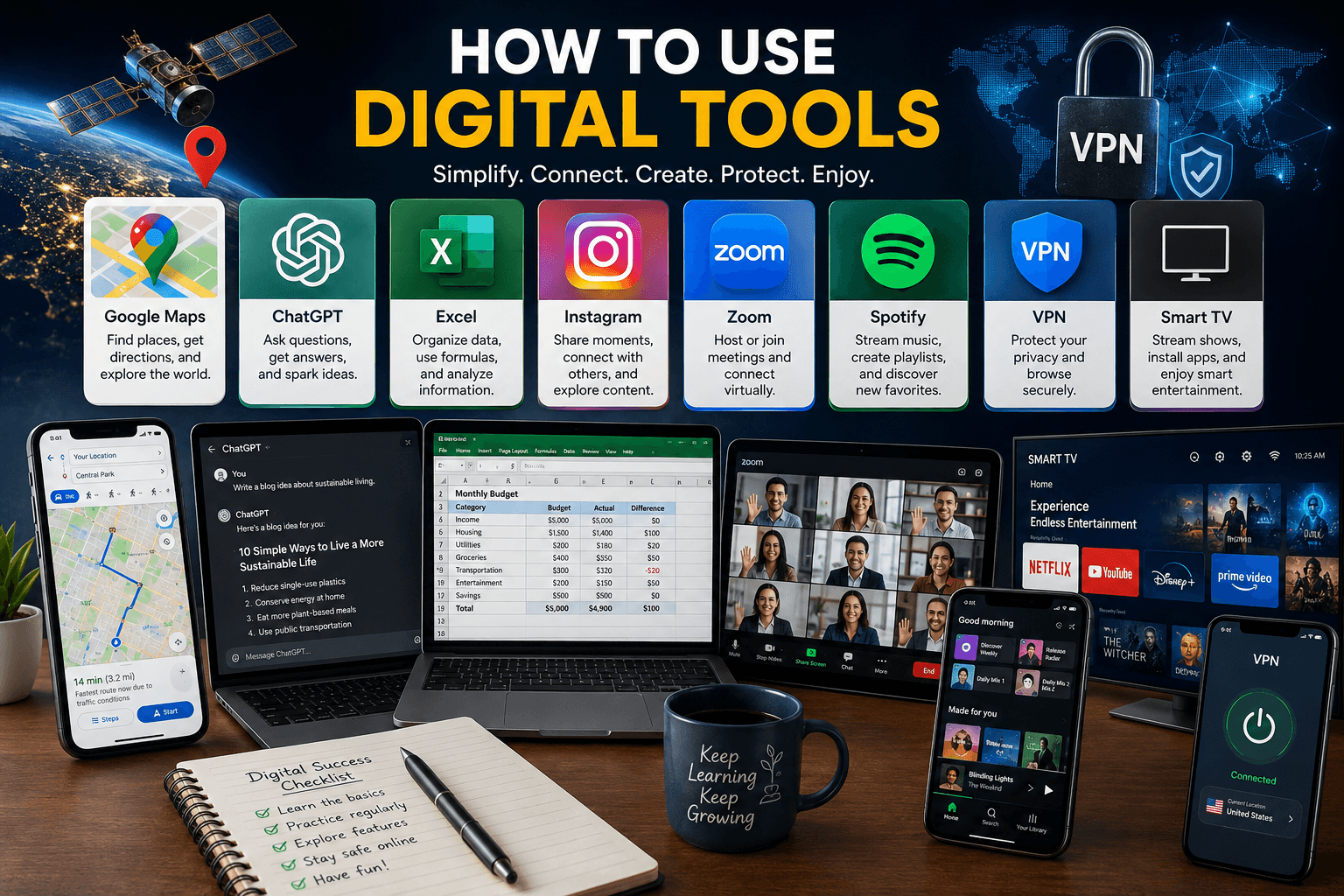
Empowering Your Digital Journey: The Ultimate Guide to Modern Digital Tools
Technology is designed to make our lives simpler, more connected, and often, more fun! But sometimes, getting started with a new app or device can feel a bit daunting. You might wonder, “Where do I even begin?” or “Am I really getting the most out of this?” You’re not alone! This guide is here to help you understand how to use some of the most popular digital tools, making your digital journey smoother and more enjoyable. We’ll walk through the basics, share helpful tips, and empower you to confidently navigate your digital world.
Core Digital Safety & Hygiene Rules (Before You Start)
Before diving into specific applications, establishing a secure baseline for your digital identity protects your data across every platform:
- Use Strong, Unique Passwords: Avoid using the same password across multiple platforms. Utilize a dedicated Password Manager (like Bitwarden or 1Password) to generate and store complex strings automatically.
- Enable Two-Factor Authentication (2FA): Always activate 2FA on critical accounts. Authenticator apps (like Google Authenticator or Microsoft Authenticator) are significantly more secure than SMS text verification.
- Keep Software Updated: Regularly update your device operating systems (iOS, Android, Windows, macOS) and applications to patch security vulnerabilities quickly.
Navigating Your World: How to Use Google Maps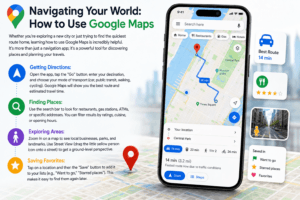
Whether you’re exploring a new city or just trying to find the quickest route home, learning how to use Google Maps is incredibly helpful. It’s more than just a navigation app; it’s a powerful tool for discovering places and planning your travels.
- Getting Directions: Open the app, tap the “Go” button, enter your destination, and choose your mode of transport (car, public transit, walking, cycling). Google Maps will show you the best route and estimated travel time.
- Finding Places: Use the search bar to look for restaurants, gas stations, ATMs, or specific addresses. You can filter results by ratings, cuisine, or opening hours.
- Exploring Areas: Zoom in on a map to see local businesses, parks, and landmarks. Use Street View (drag the little yellow person icon onto a street) to get a ground-level perspective.
- Saving Favorites: Tap on a location and then the “Save” button to add it to your lists (e.g., “Want to go,” “Starred places”). This makes it easy to find them again later.
Advanced Google Maps Hacks:
- Offline Maps: Download specific city areas over Wi-Fi before traveling to navigate seamlessly without using mobile data or losing signal.
- Location Sharing: Share your real-time travel progress or exact location with family members for improved safety during late trips.
Unleashing AI Creativity: How to Use ChatGPT
ChatGPT is an AI chatbot that can understand and generate human-like text. Learning how to use ChatGPT can open up new possibilities for writing, brainstorming, and even learning.
- Starting a Conversation: Simply type your question or request into the chat box. The clearer and more specific your prompt, the better the response will be.
- Generating Text: Ask it to write emails, draft stories, summarize articles, or even generate code snippets. For example, “Write a polite email requesting a meeting next Tuesday.”
- Brainstorming Ideas: Need ideas for a blog post or a gift? Ask ChatGPT to brainstorm a list for you.
- Understanding Limitations: Remember that ChatGPT can sometimes generate incorrect or nonsensical information. Always double-check critical facts.
Mastering Prompt Engineering for Better Results:
- Assign a Persona: Tell the AI who it should act as (e.g., “Act as a senior software developer…” or “Act as a professional copywriter…”).
- Provide Explicit Context & Constraints: Give target word counts, desired tone (formal, concise, friendly), and step-by-step formatting expectations to get optimal results on the first attempt.
Cloud Storage & Collaboration: How to Use Google Drive
Google Drive provides secure cloud storage, letting you access your files, documents, and spreadsheets from any device with an internet connection.
- Uploading Files: Drag and drop files directly from your computer into the Google Drive browser window, or tap the “+” icon on mobile devices.
- Real-Time Collaboration: Click the “Share” button on any document to invite collaborators. You can grant “Viewer,” “Commenter,” or “Editor” permissions to work simultaneously on files.
- Search Filters: Quickly locate misplaced items by filtering search results by file type (PDFs, Images, Spreadsheets) or owner.
Organizing Your Data: How to Use Excel
Microsoft Excel is a spreadsheet program used for organizing, analyzing, and storing data. Understanding how to use Excel for basic tasks can significantly improve your personal and professional organization.
- Creating a Spreadsheet: Open Excel and start with a blank workbook. Each box is called a “cell.”
- Entering Data: Click on a cell and type your information. You can use columns for categories (e.g., “Item,” “Cost,” “Date”) and rows for individual entries.
- Basic Formulas:
– SUM: To add a range of numbers, type =SUM(A1:A10) into a cell (this adds cells A1 through A10).
– AVERAGE: To find the average, use =AVERAGE(B1:B5).
- Formatting Cells: Select cells and use the options in the “Home” tab to change font, color, add borders, or format numbers as currency or percentages.
Pro Excel Productivity Tips:
- Keyboard Shortcuts: Master essential shortcuts like Ctrl + Z (Undo), Ctrl + Shift + L (Toggle Filters), and Alt + = (AutoSum).
- Data Visualization: Select your formatted data range and press F11 to instantly generate an automatic chart to visualize key trends quickly.
Sharing Your Moments: How to Use Instagram
Instagram is a popular social media platform focused on photo and video sharing. If you’re looking to connect visually, here’s how to use Instagram effectively.
- Setting Up Your Profile: Choose a clear profile picture, write a short bio, and decide if your account will be public or private.
- Posting Photos & Videos: Tap the “+” icon, select your media, add filters or edits, write a caption, and include relevant hashtags (e.g., #travelphotography).
- Using Stories & Reels:
– Stories: Short, temporary photos or videos that disappear after 24 hours. Great for daily updates.
– Reels: Short, entertaining video clips, often set to music, designed for broader reach.
- Interacting: Like posts by tapping the heart, comment on photos, and send direct messages (DMs) to friends.
- Exploring Content: Use the “Explore” tab to discover new accounts and content based on your interests.
Instagram Privacy & Safety Control:
- Close Friends List: Share private Stories exclusively with a curated list of trusted connections rather than all followers.
- Two-Factor Authentication (2FA): Protect your social media footprint by enabling 2FA under Account Settings to prevent unauthorized logins.
Connecting Virtually: How to Use Zoom
Zoom has become a go-to for virtual meetings and hangouts. Knowing how to use Zoom ensures you can connect seamlessly with colleagues, friends, and family.
- Joining a Meeting: Click on a meeting link provided by the host or open the Zoom app and enter the Meeting ID and Passcode.
- Hosting a Meeting: From the Zoom app, click “New Meeting.” You can then invite others by sharing the meeting link or ID.
- Essential Controls:
– Mute/Unmute: Click the microphone icon to control your audio.
– Start/Stop Video: Click the camera icon to turn your video on or off.
– Share Screen: Click the “Share Screen” button to show your desktop or a specific application to other participants.
– Chat: Use the “Chat” button to send text messages to everyone or specific individuals.
Professional Meeting Tips:
- Virtual Backgrounds: Hide clutter in your physical room by selecting a professional background or background blur effect under Video Settings.
- Mute Shortcut: Hold down the Spacebar while muted to temporarily un-mute yourself to speak—just like a walkie-talkie.
Your Soundtrack to Life: How to Use Spotify
Spotify is a leading music streaming service that offers millions of songs, podcasts, and audiobooks. Here’s how to use Spotify to enhance your listening experience.
- Finding & Playing Music: Use the search bar to find artists, songs, albums, or genres. Tap on a track to start playing.
- Creating Playlists: When you find a song you like, tap the three dots next to it and select “Add to playlist.” You can create new playlists or add to existing ones.
- Discovering New Content: Explore sections like “Made for you” (personalized playlists), “Charts,” and “Podcasts” to find new favorites.
- Free vs. Premium: The free version includes ads and limited skips. Premium offers ad-free listening, offline downloads, and unlimited skips.
Advanced Spotify Features:
- Offline Downloads: On Spotify Premium, toggle the “Download” switch on playlists or albums to enjoy music while traveling without active internet connections.
- Equalizer Settings: Customize your audio experience under Settings > Playback > Equalizer to boost bass or enhance clarity for spoken podcasts.
Boosting Your Online Privacy: How to Use a VPN
A Virtual Private Network (VPN) encrypts your internet connection, enhancing your online privacy and security. Understanding how to use a VPN is key for protecting your digital footprint.
- What a VPN Does: It creates a secure tunnel for your internet traffic, masking your IP address and encrypting your data. This helps protect you from snoopers and can allow access to geo-restricted content.
- Choosing a Service: Research reputable VPN providers (e.g., ExpressVPN, NordVPN, ProtonVPN) that offer strong encryption and a no-logs policy.
- Installation: Download and install the VPN app on your device (computer, phone, tablet).
- Connecting: Open the app, log in, and choose a server location. Click “Connect.” Your internet traffic will now be routed through that server.
- Basic Settings: Look for features like a “kill switch” (which blocks internet if the VPN disconnects) and different protocol options.
When Should You Always Activate a VPN?
- Public Wi-Fi Networks: Always turn on your VPN when connecting to unsecured Wi-Fi networks in airports, cafes, or hotels to block eavesdropping attacks.
- Financial Transactions: Use encrypted connections when logging into online banking apps while traveling.
Entertainment at Your Fingertips: How to Use a Smart TV
A smart TV brings internet connectivity and app functionality directly to your living room. Learning how to use a smart TV unlocks a world of entertainment.
- Initial Setup: Plug in your TV, turn it on, and follow the on-screen prompts to select your language, country, and connect to your home Wi-Fi network.
- Installing Streaming Apps: Navigate to your TV’s app store (e.g., Google Play Store, LG Content Store, Samsung Smart Hub). Search for apps like Netflix, Hulu, Disney+, or YouTube and install them.
- Using Streaming Apps: Open the app, log in with your account details, and start browsing content.
- Connecting External Devices: Use HDMI ports to connect game consoles, Blu-ray players, or soundbars.
- Smart Features: Explore voice control (often via a button on your remote) or screen mirroring from your phone or tablet.
Optimizing Smart TV Performance:
- Clear App Cache: If streaming apps lag or crash, navigate to Settings > Apps to clear cached data periodically.
- Ethernet Connection: Connect an Ethernet cable directly to your router for seamless 4K streaming free of wireless interference.
Comprehensive Platform Comparison
| Digital Tool | Primary Use Case | Free Tier Available? | Key Standout Feature |
| Google Maps | Navigation & Local Discovery | Yes (100% Free) | Real-time traffic & offline navigation |
| ChatGPT | AI Writing & Brainstorming | Yes (Basic Models) | Natural language text generation |
| Google Drive | Cloud Storage & Collaboration | Yes (15 GB Free) | Seamless real-time file sharing |
| Microsoft Excel | Data Organization & Analysis | Limited Web Version | Advanced formulas & charting tools |
| Photo & Video Social Media | Yes (100% Free) | Engaging Reels & Stories format | |
| Zoom | Video Conferencing & Meetings | Yes (40-min limit on group calls) | Screen sharing & virtual backgrounds |
| Spotify | Music & Podcast Streaming | Yes (With Ads) | Tailored “Discover Weekly” playlists |
| VPN | Internet Privacy & Security | Free trials / Limited options | Encrypted internet connection |
| Smart TV | Home Streaming & Entertainment | Dependent on apps | Direct app ecosystem on big screen |
Common Questions About Using Digital Tools
It’s natural to have questions when you’re learning how to use new technology. Here are some common ones:
- What’s the easiest way to learn how to use new software or apps? Start with the basics, watch tutorials (many apps have official guides), and practice regularly. Don’t be afraid to explore buttons and settings.
- Can I use these tools on different devices? Many popular apps like Google Maps, ChatGPT, Instagram, Zoom, and Spotify offer versions for smartphones, tablets, and computers, often syncing your data across them.
- Are there free versions of these tools? Yes, many tools offer free tiers with basic functionality (e.g., Spotify Free, Zoom Basic, Google Maps is free). Premium versions usually unlock more features or remove ads.
- How do I keep my information safe when using these tools? Always use strong, unique passwords. Be cautious about what personal information you share, especially on social media. For privacy, consider using a VPN.
- What should I do if an app freezes or stops working? Force close the app and restart it. If that fails, check for updates in your device app store or restart your device entirely.
Empowering Your Digital Journey
Learning how to use these essential digital tools can truly enhance your daily life, from navigating your commute to connecting with loved ones or boosting your productivity. Don’t feel overwhelmed; take it one step at a time. The more you practice and explore, the more confident you’ll become. Embrace the convenience and possibilities that technology offers, and enjoy your empowered digital journey!
Must be read:https://authoritiesvista.tech/how-to-use-digital-tools/
[…] Writing a condolence message can feel challenging, but remember that your genuine effort to offer comfort is what truly matters. Even a simple, sincere message can provide immense solace to someone navigating the pain of loss. By focusing on empathy, offering specific support, and choosing your words carefully, you can create a message that truly makes a difference. Don’t let the fear of imperfection prevent you from reaching out; your thoughtful words are a powerful way to show you care and help someone through their darkest days. Knowing how to write a condolence message is a valuable skill that allows you to extend compassion when it’s needed most. Must be read:https://authoritiesvista.tech/how-to-use-digital-tools/ […]